

What end users see
This page is written for the person holding the iPhone or iPad, and for any IT admin deciding whether to allow AnchorGrid. It’s meant to be forwarded as-is.
The whole session story
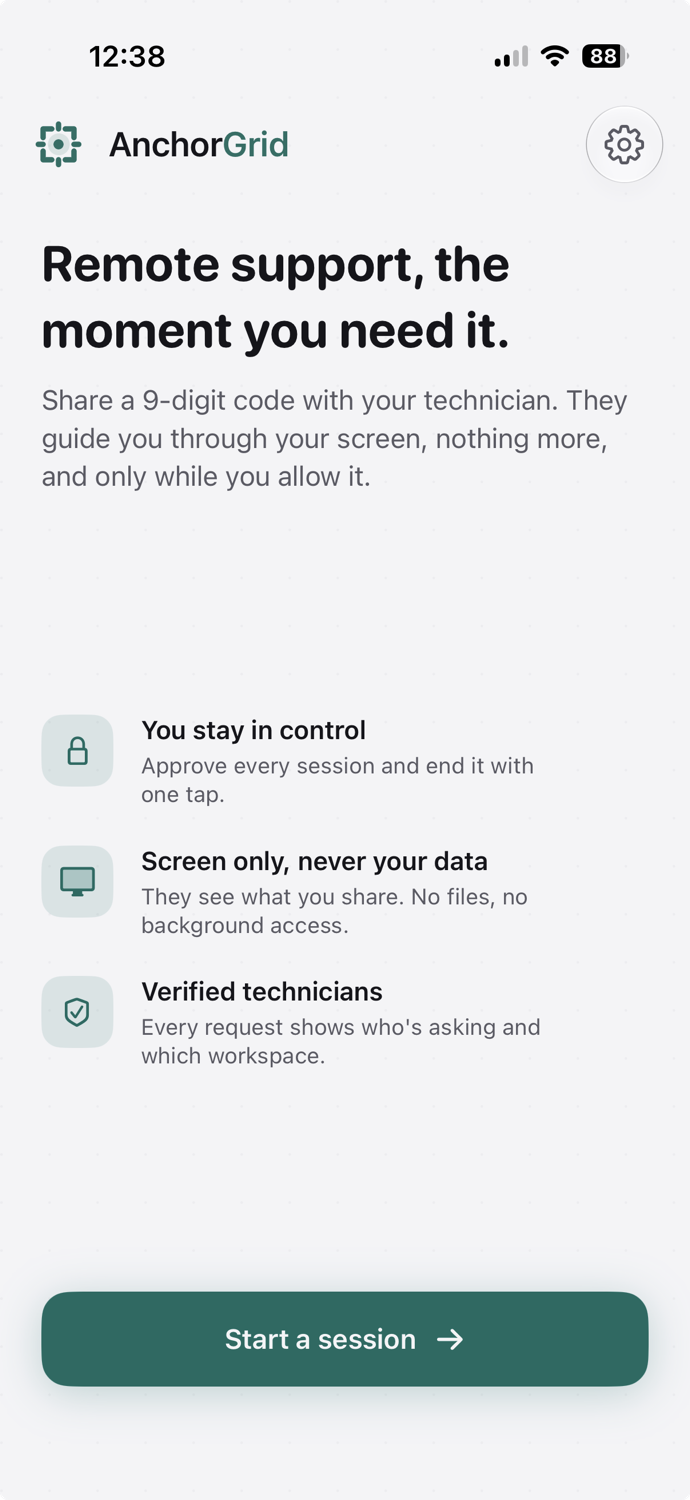
Section titled “The whole session story”AnchorGrid starts with the person holding the device. They do not need an account, and nothing is shared just because the app is open.
On first launch, AnchorGrid may ask the user to name their device. If they skip it, the app uses a default name based on the device type. After that, the session flow starts here:
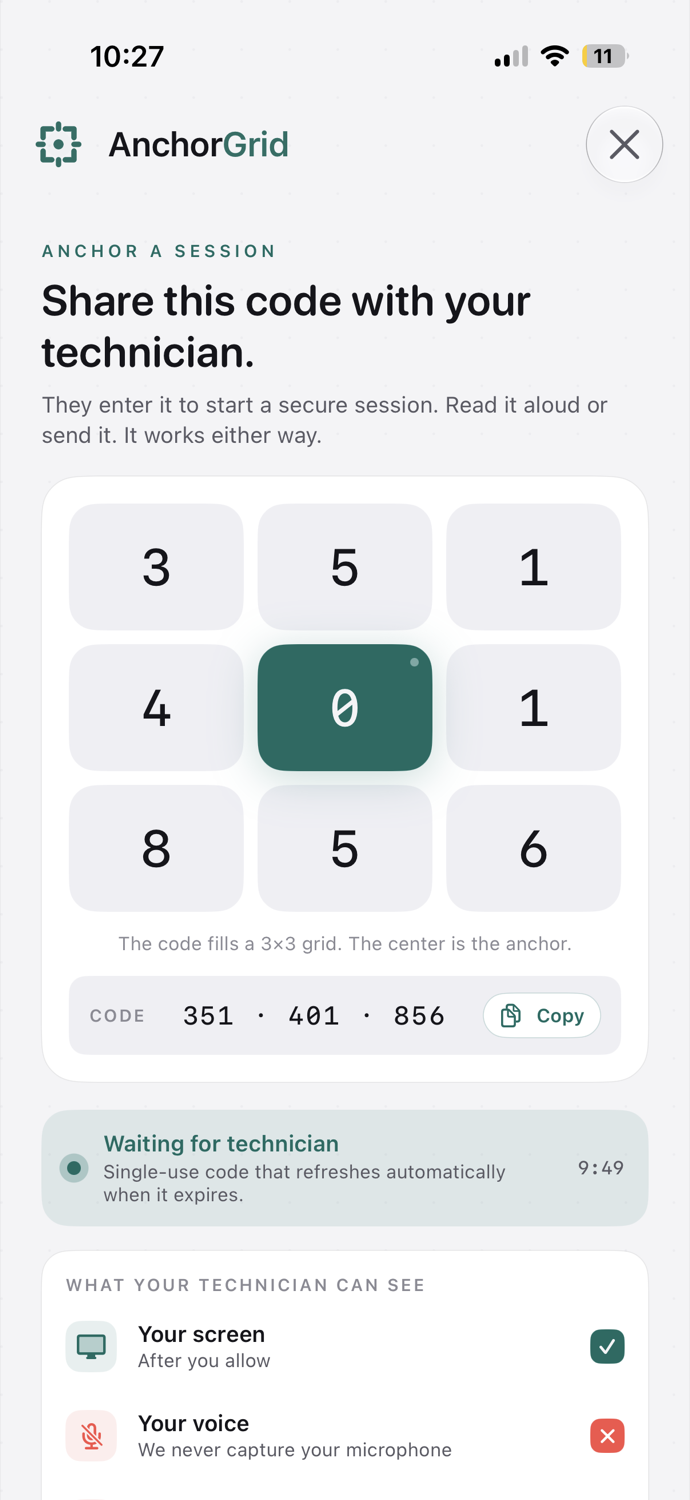
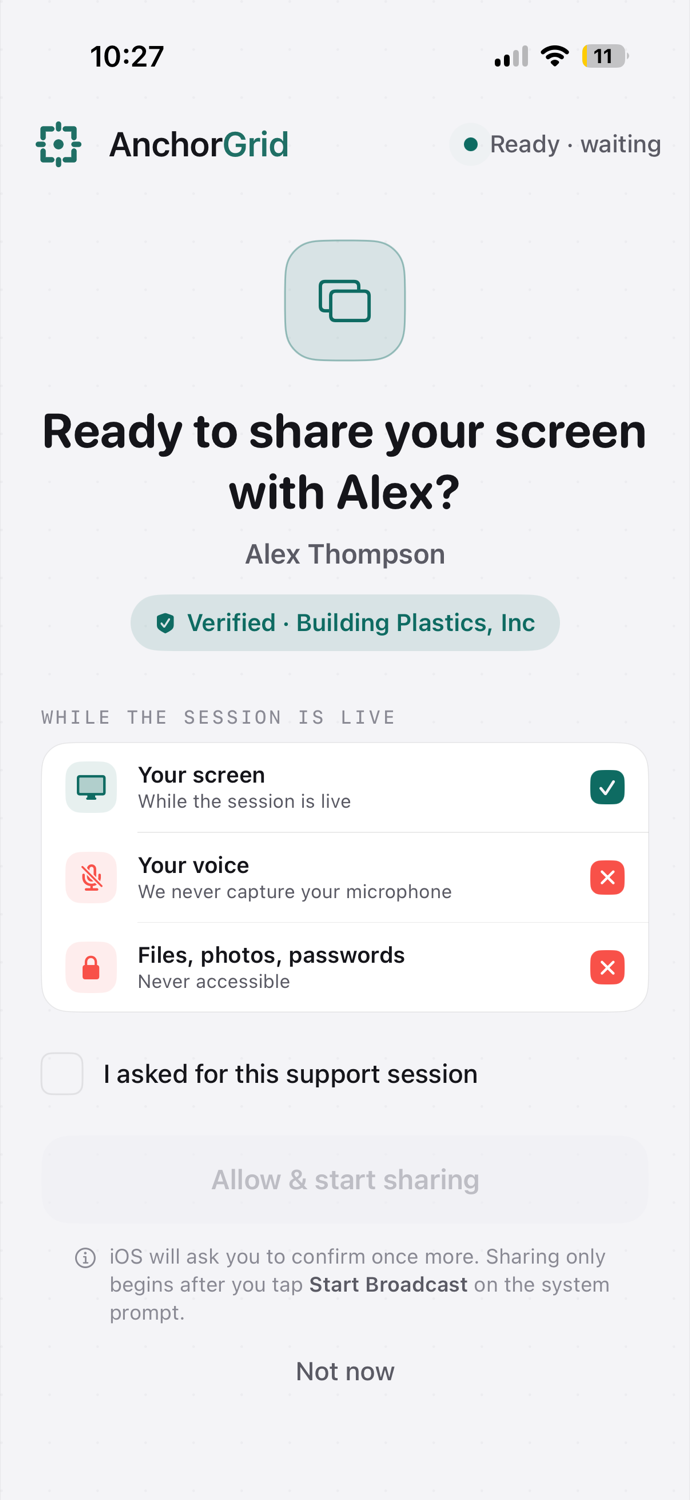
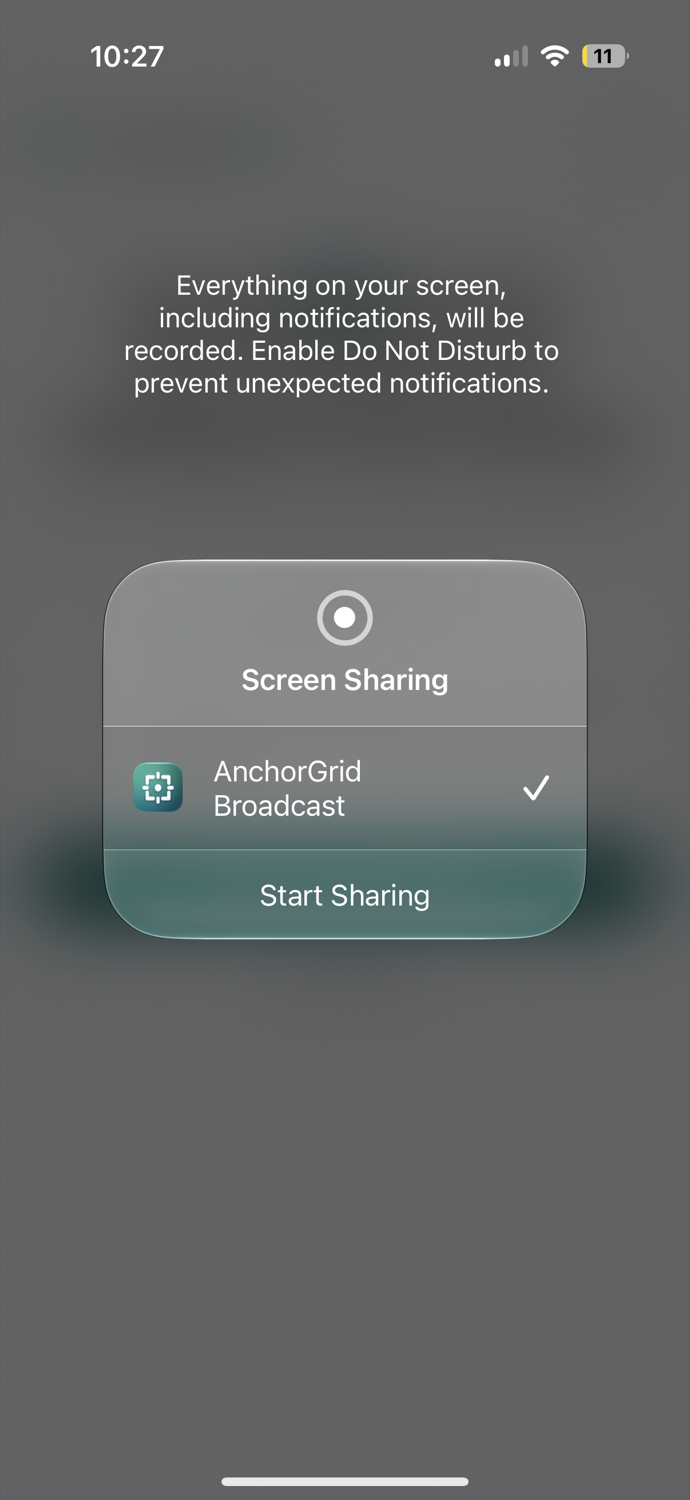
After the technician enters the code from their workspace, the app names who is asking and shows exactly what the session can access. The user approves that request, then iOS asks for one final system confirmation before screen sharing begins.
Once sharing starts, the user can stop at any time. When the session ends, the code cannot be reused; helping again later requires a fresh session code.
You are always in control
Section titled “You are always in control”- Nothing is shared until you allow it. AnchorGrid can’t see your screen on its own. You decide when to create a code, and after the technician enters it, the app shows you who’s asking (their name and verified workspace) and exactly what the session can access. You tap Allow & start sharing, and iOS then asks you to confirm once more.
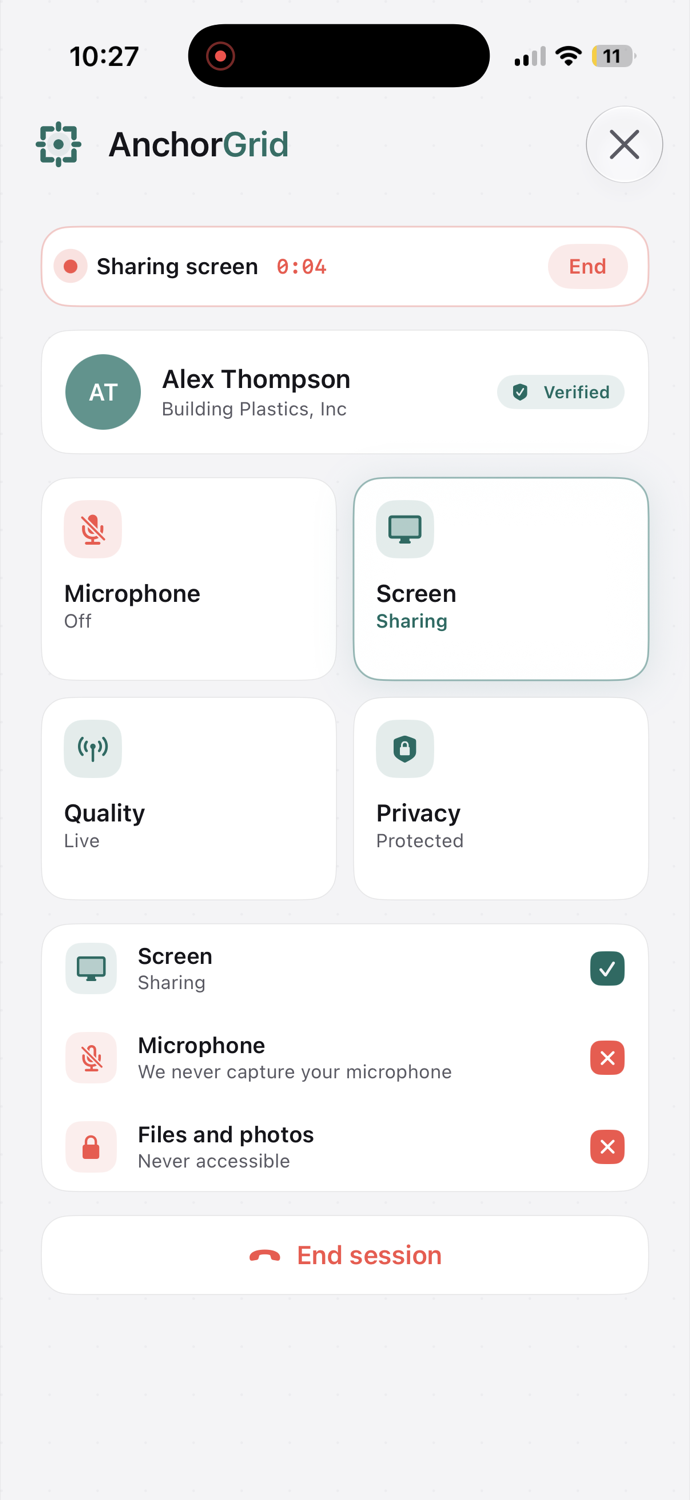
- iOS shows you the whole time. While you’re sharing, iOS displays its own recording indicator (a red status bar or dot). If that indicator is gone, nothing is being shared.
- You can stop instantly. End the session from your device at any moment. No one has to approve it.
Tip: your whole screen is shared, so notifications can show up too. Turn on a Focus or Do Not Disturb for the session if you’d rather they didn’t.
The technician can look, not touch
Section titled “The technician can look, not touch”AnchorGrid is view-only. The technician sees your screen live, but cannot tap, type, swipe, or control your device. Remote control isn’t something we chose to leave out, iOS does not allow one app to control the device on another person’s behalf, so it is simply not possible here.
What is and isn’t shared
Section titled “What is and isn’t shared”- Shared: whatever is visible on your screen, and only while the broadcast is active. Because the technician sees exactly what you see, avoid opening passwords, banking apps, or other private information you don’t want them to view during the session.
- Not shared: your microphone. AnchorGrid does not send your voice or any audio off the device.
- Not captured: anything before you press Start or after you stop. There is no background recording.
While the session is live, the app keeps showing you what’s on and what’s off: your screen sharing, your microphone off, and your files, photos, and passwords never accessible.
No account, nothing left behind
Section titled “No account, nothing left behind”The end user never creates an AnchorGrid account. The only thing installed is the free AnchorGrid app, and you can delete it whenever you like. The screen is streamed live to the technician for the session; it is not published as a saved video recording.
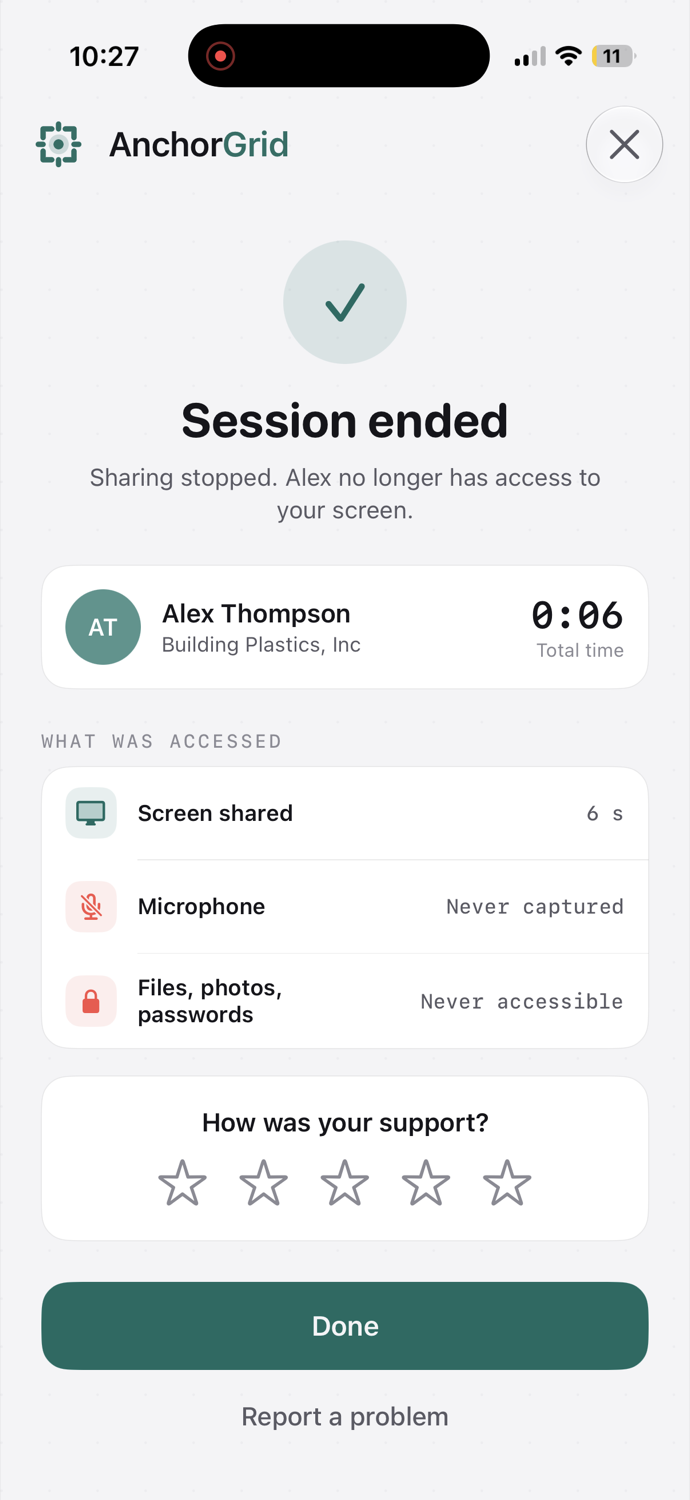
When the session ends, the app confirms that sharing stopped and the technician no longer has access, and shows a short summary of what was accessed.
For IT admins
Section titled “For IT admins”- Access is gated on the technician side: only members of your AnchorGrid workspace can connect, after their normal sign-in (and two-factor, if enabled).
- Every session is recorded in the workspace audit log, who connected, when it started, and when it ended, so support activity is accountable.
- The end-user app holds no customer account and requires no device management to run.
Questions about privacy or security? Email [email protected] or see the AnchorGrid security page.