
Getting started
An AnchorGrid session has two people: the end user holding the iPhone or iPad, and the technician watching in a browser. The end user needs only the free app. The technician needs a workspace account.
 Download AnchorGrid
Free on the App Store, iOS 17.6 or later
Download AnchorGrid
Free on the App Store, iOS 17.6 or later
What you need
Section titled “What you need”- End user: the free AnchorGrid app from the App Store. No account, no sign-up.
- Technician: an account in your team’s AnchorGrid workspace, opened in any modern browser (Chrome, Safari, Edge, or Firefox).
Step 1: The end user starts a session
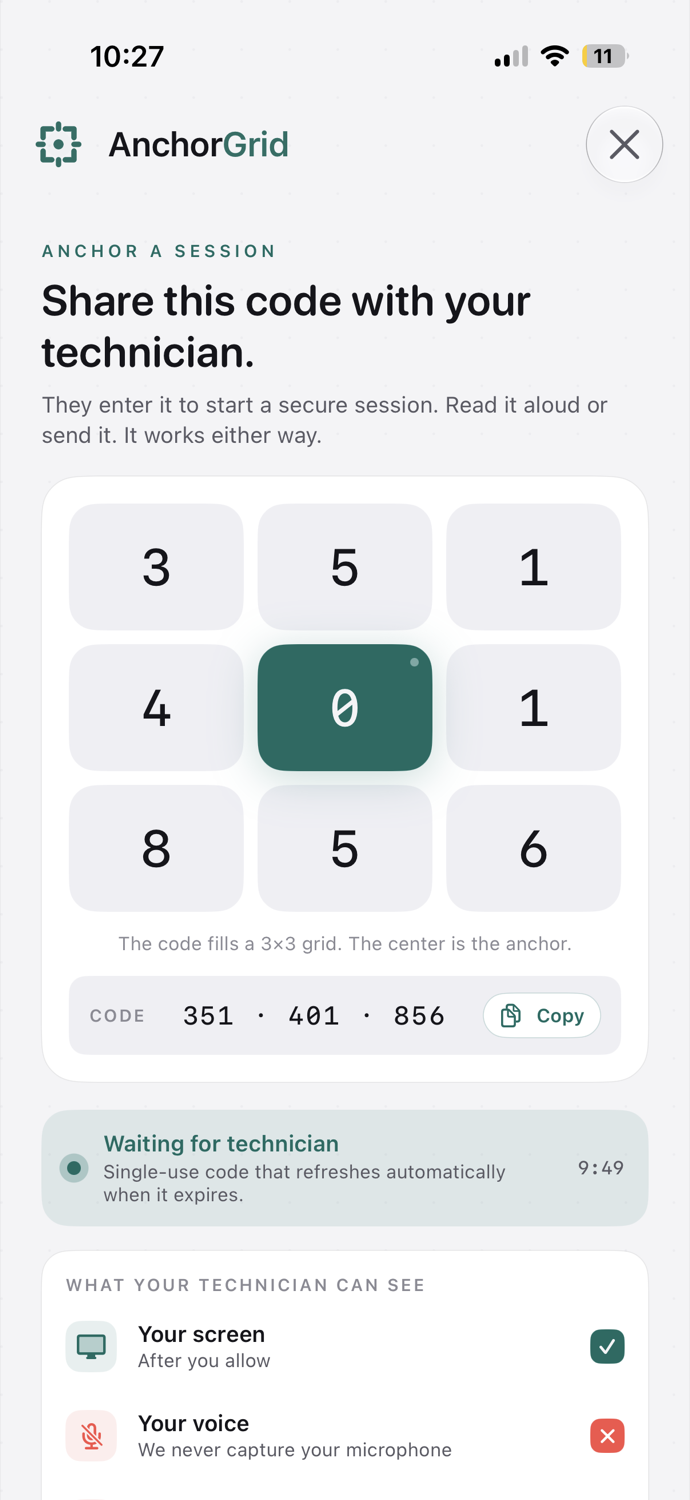
Section titled “Step 1: The end user starts a session”The person holding the device opens the AnchorGrid app and taps Start a session. The first time they do this, the app asks them to name the device; that is a one-time step. If they skip it, AnchorGrid uses a default name based on the device type. After that, the app goes straight to the code screen.
They read that code to you, or paste it into the chat or email thread you already have open. The code is tied to your workspace and single-use. It expires about 10 minutes after it’s generated, and while the end user waits, the app refreshes it automatically, so there’s always a live code to share and nothing is left open.
Step 2: The technician enters the code
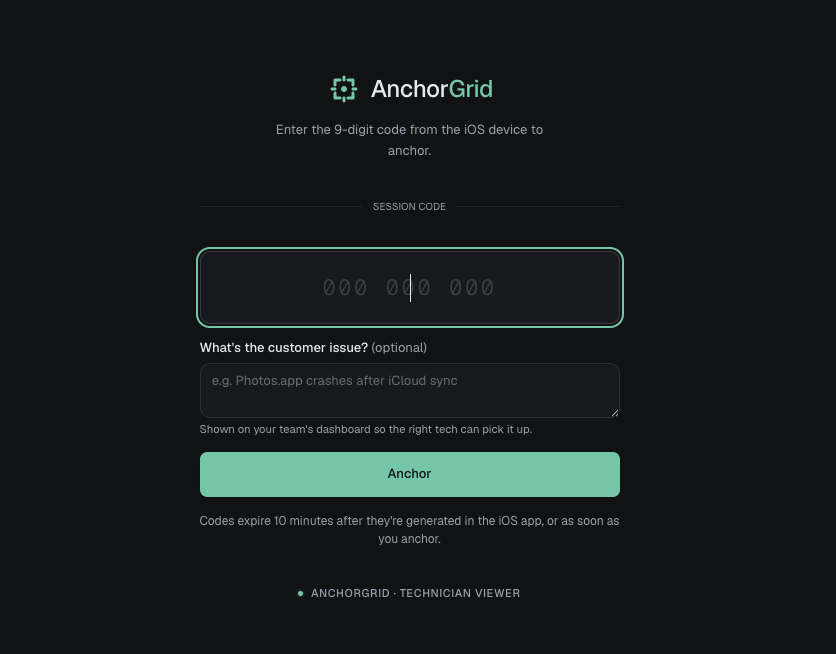
Section titled “Step 2: The technician enters the code”Sign in to your workspace in a browser. Your normal login and, if your team uses it, two-factor both happen here, at the door, not at code entry. Enter the 9-digit code and connect.
Before anything is shared, the app shows a consent screen on the iPhone or iPad with your name, your verified workspace, and exactly what the session can access. The end user taps Allow & start sharing, then iOS shows its own confirmation. Once they allow that, screen sharing begins.
Behind the scenes AnchorGrid checks that you’re a member of the workspace, then negotiates the shortest network path between the two devices: direct when it can, relayed only when a firewall forces it. This usually takes a couple of seconds.
Step 3: You watch the screen live
Section titled “Step 3: You watch the screen live”You now see the iPhone or iPad live and view-only. You can see everything on the screen, but you cannot tap, type, or otherwise control the device. That limit is enforced by iOS, not just by us (see What end users see).
Every session, when it starts, who connected, and when it ends, is written to your workspace audit log.
Step 4: Ending the session
Section titled “Step 4: Ending the session”Either side can end at any time:
- The end user stops the broadcast (or the iOS broadcast controls) on their device.
- The technician closes the session in the browser.
Ending is immediate. To help again later, the end user simply taps Start a session again for a fresh code.
Troubleshooting
Section titled “Troubleshooting”- The code won’t connect. Codes are single-use and expire quickly. Have the end user tap Start a session again for a new one.
- The screen froze or the video dropped. AnchorGrid reconnects automatically when the network recovers. If a phone call or the lock screen interrupted the broadcast, the end user gets a one-tap prompt to resume (see the FAQ).
- Still stuck? Email [email protected].